.png)
Steam
- What can I beemind with Steam?
- When does the goal update?
- Why can't I create a goal to track this particular game?
- My profile is public but you're not fetching any of my games!
- Steam sample goal setup
Steam is a service which lets you buy, manage, and play games on your personal computer.
What can I beemind with Steam?
You can beemind the number of hours you spend playing a specific game. You can choose a "Do More" goal for playing at least a certain amount of your chosen game, or "Do Less" for setting limits on how much you can play your chosen game. (See below for beeminding time spent across all games.)
That means you can use a Steam goal to make sure you're putting in the time to beat your backlogged games... or you can use it to help you limit how much time you play distracting games. You could even make a goal for each for the same game, in order to keep your gaming within certain limits!
You can beemind total game time as well, but this might be a bit opaque: we have to sum it up from all your games, so it might be difficult to know if there's something missing and why. Reasons a game might be missing include having set it to private or hidden it from your library.
When does the goal update?
There are two limitations on the goal updates. The first is that Beeminder doesn't get data constantly in realtime, but rather fetches it at intervals. In this case, doing a manual fetch will update your goal right away with the data from Steam.
However, while you are playing your game, Steam only updates the information available to Beeminder in half-hour increments. It updates immediately once you exit your game.
For a Do More goal, this should work out okay, except that you might need to quit your game just before midnight if you're cutting it close.
For a Do Less goal, we may not be able to fetch data in time to send you reminders if you go over your limit. Do Less goals might be best used with your own timers and alarms to keep track, due to the inherent limitations of the Steam API.
Why can't I create a goal to track this particular game?
Most likely, this is because it has "Profile features limited" status on Steam. Games which have their profile features limited by Steam don't count into certain stats like overall playtime and your number of perfect game achievements, as part of Steam's measures to prevent games with low reputation from profiting by Steam card trading and similar issues.
You can check whether a game has the profile features limited on the Steam store page. It looks something like this:
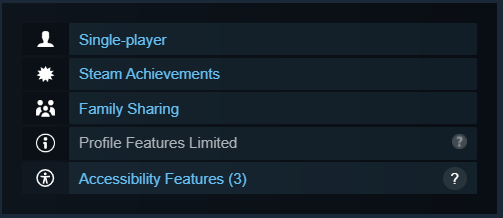
Sometimes games are re-evaluated by Steam due to number of purchases, reviews, and other signs of player engagement, so a game that initially has limited profile features may become available to track in future.
If a game that doesn't have its profile features limited isn't showing up, that's probably a bug! If you can let us know the title of the game with a link to it on the Steam store, we can try to look into the problem.
My profile is public but you're not fetching any of my games!
Double-check your Steam privacy settings: your profile and game details need to be public, and you need to make sure the checkbox for hiding your total playtime is unchecked.
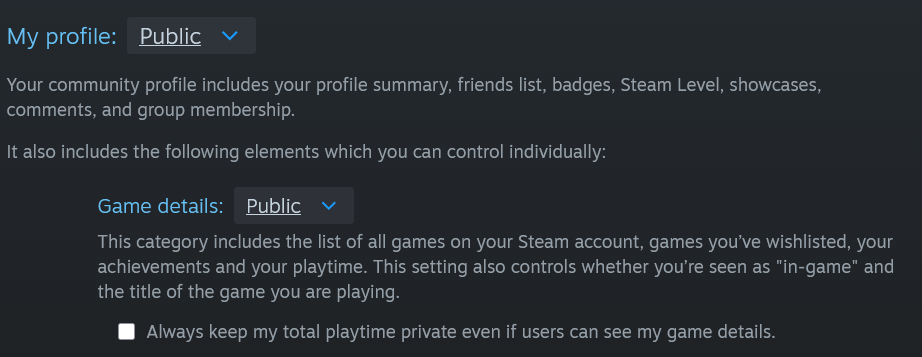
If the settings aren't set to public, Steam's API won't show us your data.
Steam sample goal setup
- Head to create a new goal.
- Click the Steam icon to start a new goal using Steam data.

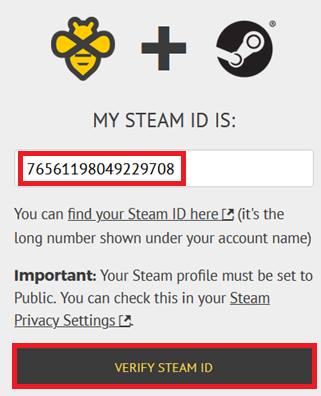
- First up, you need to let us know your Steam ID. You can find it in your account details on Steam.
![A screenshot from Steam showing where the Steam ID is, below the text "[username]'s account" and preceeded by the text "Steam ID:"](//d33v4339jhl8k0.cloudfront.net/docs/assets/593eda072c7d3a0747cdd5b2/images/6a0efbe3dd0564da64d4f42c/file-LIBqIhFWr0.png "A screenshot from Steam showing where the Steam ID is, below the text \"[username]'s account\" and preceeded by the text \"Steam ID:\"")
Enter that into the box on Beeminder and click "Verify Steam ID".
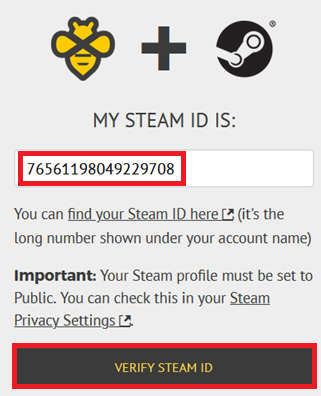
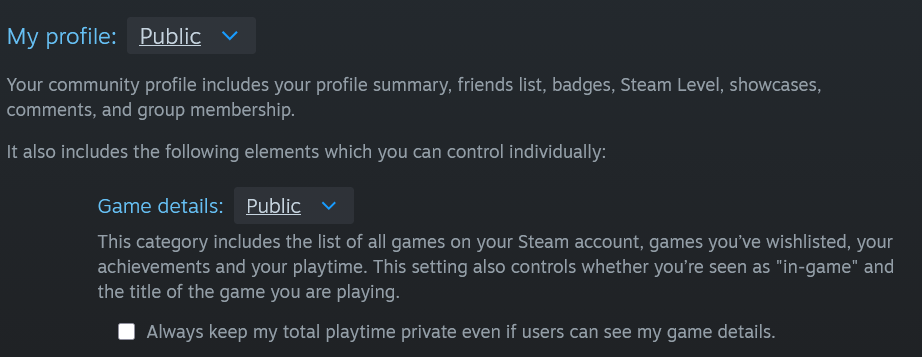
You may need to make sure you set your Steam profile to public first, which you can do in your Steam privacy settings. You'll need to make sure that your profile and game time are public, as in the screenshot below:
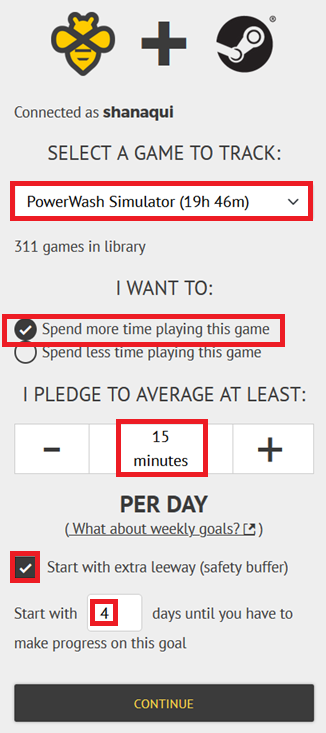
Whew! Okay, now we can proceed. - Next, you need to choose what you want to track. For this walkthrough, we're going to choose a game I want to play more (questing for that 100% completion!), and create a Do More goal. You can also create a Do Less goal if you want to limit your time spent in a given game. So I select PowerWash Simulator (don't judge, it's highly satisfying) from the list in the dropdown, and choose the radio button that says "Spend more time playing this game".
Atfer that we need to pick a rate. Let's go with something small to chip away at it: 15 minutes a day.
If you want to start off with some extra buffer, make sure to tick the button marked "Start with extra leeway". I've started off with 4 days of extra buffer here, to give me some wiggle room as I get used to the goal.
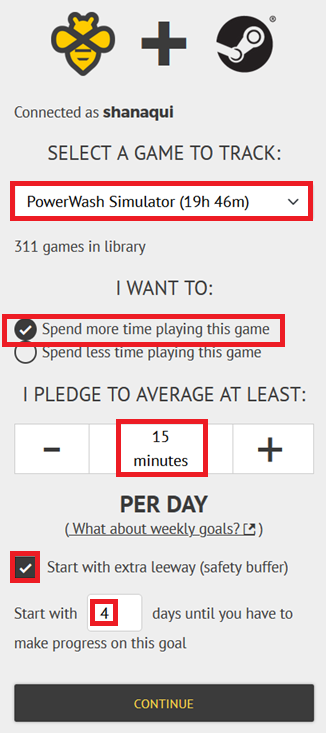
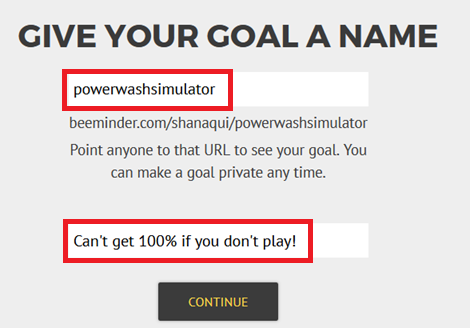
To go on to the next step, hit "Continue". - Give your goal a brief name. If you want, you can also write a short description with more information.
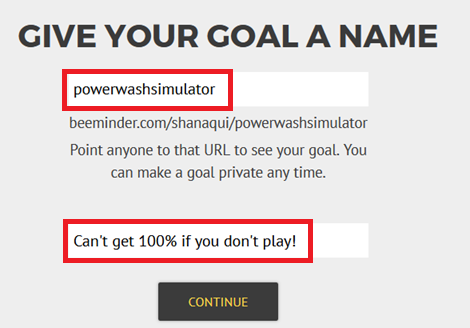
Click "Continue" again to proceed! - Finally, choose your initial pledge. This is the amount you will pay the first time you derail on the goal. After derailing, the pledge will increase by default — use the dropdown below to control how high it goes by selecting the cap. In the example below, I have chosen to start at a $5 pledge, which will increase each time I derail, until it reaches $270 — the pledge cap. (To read more about pledges and payments, check out some FAQs!)
If you want to start out with a sort of trial period, you can choose to start the goal at $0. If you do that, the pledge will automatically increase to $5 after seven days. If you derail before that, it will also increase to $5.

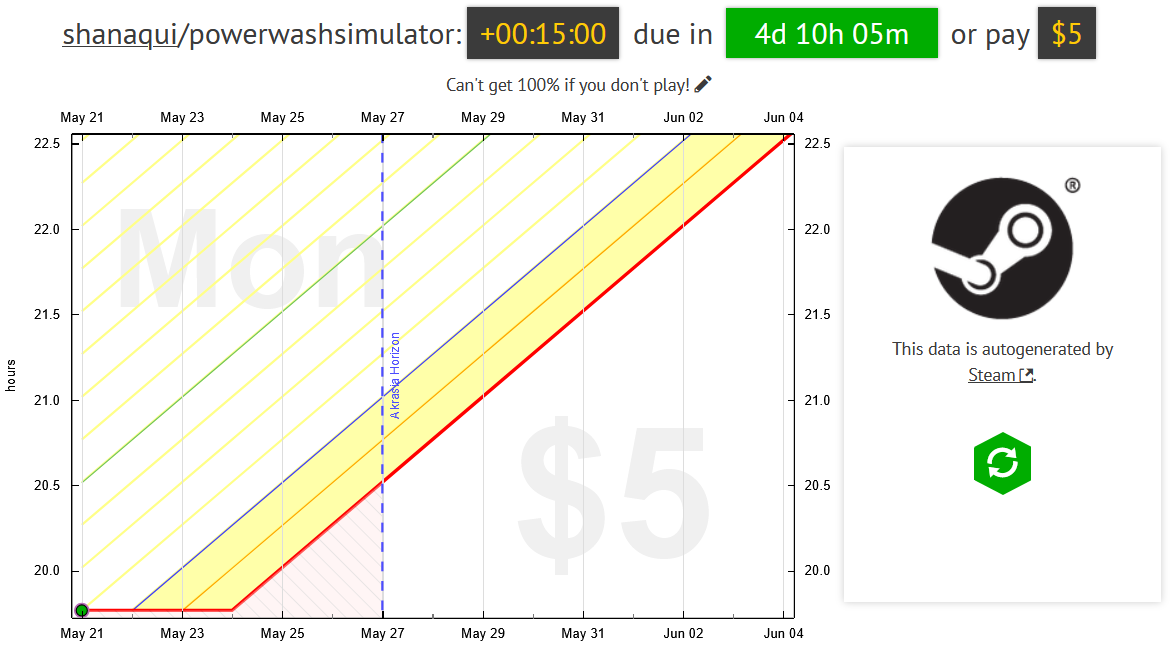
- And that's it! My goal's created. I need to play 15 minutes by the time the countdown's done in 4 days, 10 hours and 5 minutes, or I'll pay $5.
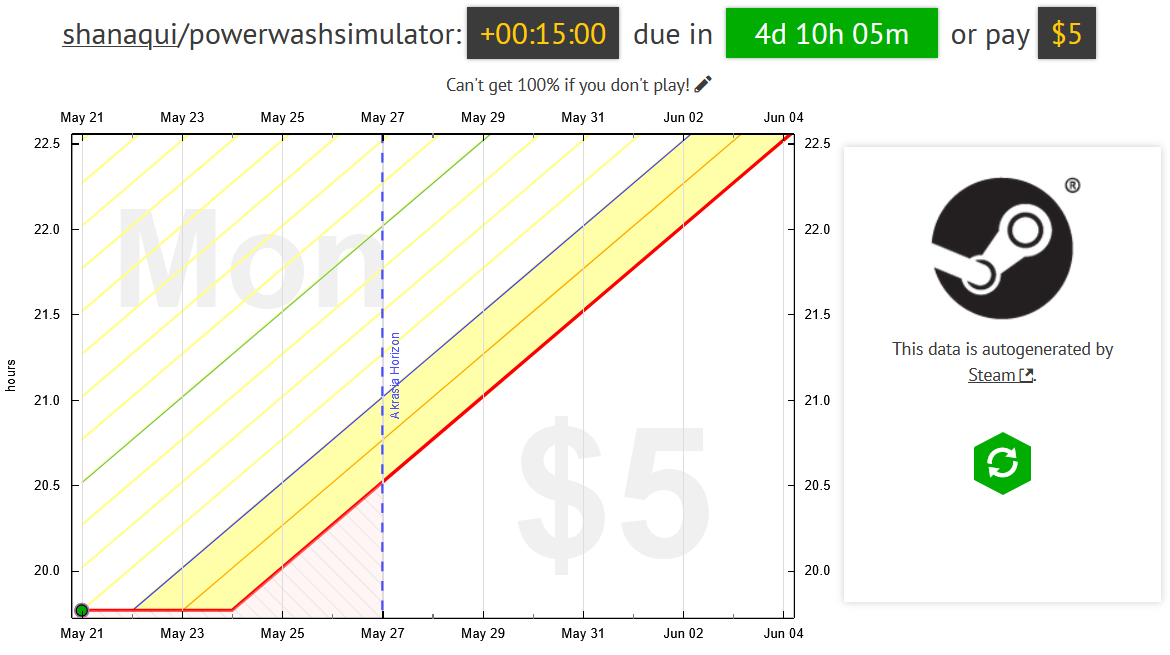

![A screenshot from Steam showing where the Steam ID is, below the text "[username]'s account" and preceeded by the text "Steam ID:"](https://s3.amazonaws.com/helpscout.net/docs/assets/593eda072c7d3a0747cdd5b2/images/6a0efbe3dd0564da64d4f42c/file-LIBqIhFWr0.png "A screenshot from Steam showing where the Steam ID is, below the text \"[username]'s account\" and preceeded by the text \"Steam ID:\"")

Keywords: autodata integrations, backlogs, gaming, limiting game time